Knowledge base
Accessing the QR code for your event
Created on 06 Mar 2026, Updated 27 Jun 2026 06:26
Accessing the QR code for your event
You can quickly access and download the QR code for any of your events from your Events dashboard.
Step 1: Open your Events dashboard
- Log in to your account.
- Go to My events where your events are listed.
Step 2: Click the Tools icon
- Find the event you want the QR code for.
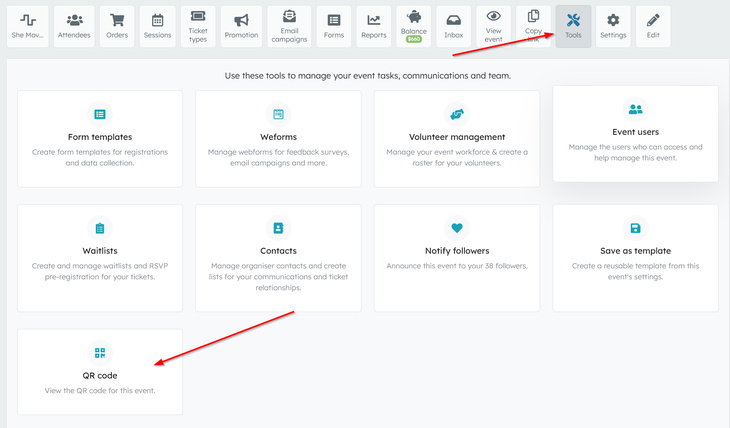
- Click the Tools option for that event to open the tools page.
Step 3: Open the QR code
- On the Tools page, look for the tile labelled QR code.
- Click the QR code tile.
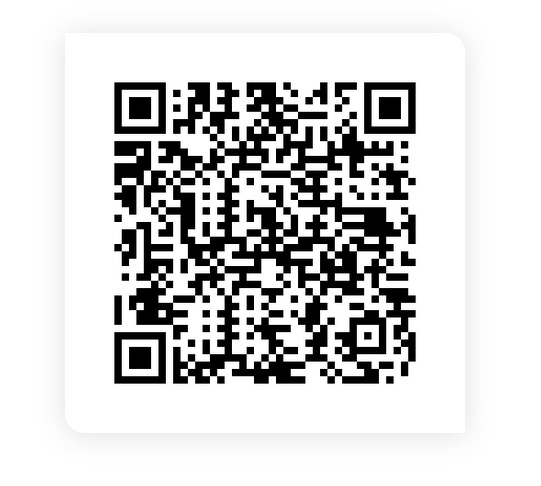
- A modal window will open displaying your event's QR code.
Step 4: Save the QR code image
You can save the QR code to use on posters, websites, or emails:
- Right-click (or long-press on mobile) on the QR code image.
- Choose your browser’s option such as “Save image as…”.
- Select a location on your device and confirm to download the image.